You found the perfect TikTok: a recipe, a dance, a joke your group chat needs to see. You tap Save, and the trouble starts. A bouncing watermark appears, the download button is missing, or the App Store pushes “free” downloader apps that ask for a weekly subscription.
Here is what most people never hear: you can download TikTok videos on iPhone with tools you already have. Safari and the Files app are enough. No app, no account, no watermark.
In this guide, you will learn the fastest way to save any public TikTok to your iPhone or iPad, how to move it into Photos, and how to fix the most common problems in seconds.
What You Need Before You Start
Before you download TikTok videos on iPhone, check these four things:
- An iPhone or iPad running iOS 13 or newer (go to Settings → General → About to check)
- The Safari browser
- The link to a public TikTok video
- A few hundred MB of free storage
That is it. No App Store download, no account, and no payment.
Method 1: Download TikTok Videos on iPhone With ClipDownloaders (Recommended)
This is the fastest way to get a clean, watermark-free copy, and it takes less than a minute.
Step 1: Copy the TikTok Link
Open the TikTok app and find the video. Tap the Share arrow on the right side of the screen, then tap Copy link. You will see a small “Copied” message.
Step 2: Open ClipDownloaders in Safari
Open Safari and go to clipdownloaders.com. Use Safari rather than the browser inside Instagram, Facebook or other apps, because those in-app browsers often block downloads.
Step 3: Paste and Download
Tap the box at the top of the page, tap Paste, and then tap Download. Choose HD Video if you are on Wi-Fi, or the standard video for a smaller file.
Step 4: Confirm the Download
Safari asks “Do you want to download…?”. Tap Download. A small download arrow appears in Safari’s address bar; tap it to see the progress.
Step 5: Move the Video to Photos
Safari saves files to the Files app, not Photos. To move it:
- Open the Files app and tap Browse → On My iPhone → Downloads.
- Tap the video to open it.
- Tap the Share button at the bottom left.
- Tap Save Video.
The video is now in your Photos app, ready to watch, edit or share. After two or three tries, you will be able to do the whole thing in about 20 seconds.
Method 2: TikTok’s Built-In Save Button
The TikTok app has its own download option. Tap Share, then Save video. It works, but with three drawbacks:
- The video has a moving TikTok logo and the creator’s username on it.
- An extra TikTok end screen is added.
- If the creator has turned off downloads, the button does not appear at all.
Use this method only if you do not mind the watermark. If you want to download TikTok videos on iPhone in their original, clean form, stick with Method 1.
Method 3: Screen Recording
You can also record your screen while the video plays. Add Screen Recording in Settings → Control Center, swipe down to open Control Center, tap the record button and play the video.
Treat this as a backup plan, not the best way to download TikTok videos on iPhone. The recording includes TikTok’s buttons and captions, quality is lower, and you have to trim the start and end yourself.
Which Method Is Best?
Here is a quick side-by-side look at every way to download TikTok videos on iPhone:
| ClipDownloaders | TikTok Save button | Screen recording | |
|---|---|---|---|
| Watermark | No | Yes | Buttons and captions visible |
| Quality | Original, HD when available | Re-compressed | Lower |
| Works when saving is turned off | Yes | No | Yes |
| Extra editing needed | No | No | Yes, trimming |
| App needed | No | TikTok | No |
The winner is clear: ClipDownloaders gives you the original quality with no logo and no extra app.
How to Download TikTok Audio on iPhone
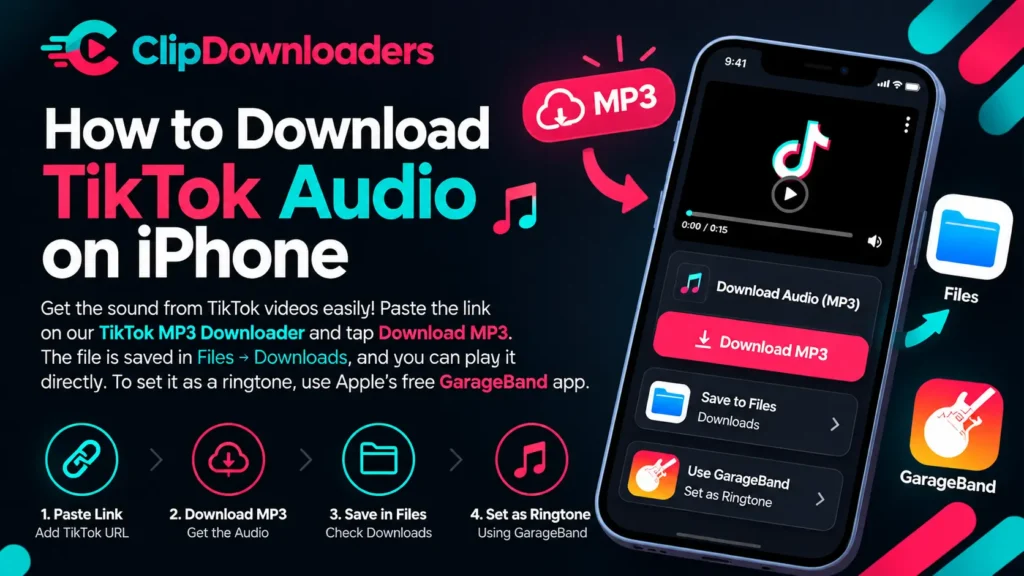
If you only want the sound, paste the link on our TikTok MP3 Downloader and tap Download MP3. The MP3 is saved in Files → Downloads, where you can play it directly. To set it as a ringtone, you can use Apple’s free GarageBand app; our MP3 page explains how step by step.
Does This Work on iPad?
Yes. The same steps that let you download TikTok videos on iPhone work on iPad too. Safari on iPad may open the desktop version of websites; that is fine, as the tool works the same way. Downloaded videos go to Files → On My iPad → Downloads.
Can I Use Chrome Instead of Safari?
Yes. Recent versions of Chrome for iPhone can download files too. After you tap Download, Chrome shows a bar at the bottom; tap Open in and choose Save to Files or Save Video. If nothing happens, switch to Safari, which handles downloads most reliably on iPhone.
Common Problems and Fixes
Even the easiest way to download TikTok videos on iPhone can hit a snag. Here are the five most common problems and how to fix each one in seconds.
The video plays but does not download
Long-press the Download button and choose Download Linked File.
I can’t find the video in Photos
Safari saves it to the Files app first. Follow Step 5 above to move it into Photos.
The video won’t play in Files
The download may not have finished. Check the download arrow in Safari, delete the file, and download again.
“Download failed” message
Your storage may be full. Go to Settings → General → iPhone Storage and free up space.
Nothing happens when I tap Download
You may be in an in-app browser. Copy the website address and open it in Safari.
Is It Safe and Legal?
Yes, it is safe to download TikTok videos on iPhone with ClipDownloaders. The tool runs in your browser, does not ask for your TikTok login, and does not install anything on your iPhone.
Downloading public videos for personal viewing is common, but the video still belongs to its creator. Do not reupload other people’s videos as your own or use them commercially without permission, and always credit the creator when you share.
5 Bonus iPhone Tricks for TikTok Lovers
Once you know how to save videos, these small tricks make the whole thing faster and more fun.
1. Put ClipDownloaders on Your Home Screen
Open clipdownloaders.com in Safari, tap the Share button, scroll down and tap Add to Home Screen. You now have an icon that opens the downloader in one tap, just like an app, but without installing anything.
2. Make a “TikToks” Album in Photos
Open Photos → Albums, tap + and choose New Album. Name it “TikToks”. Each time you save a video, tap Share → Add to Album to keep your favorites in one place instead of mixed with your selfies.
3. Clean Up the Downloads Folder
After moving videos to Photos, the original copy stays in Files → Downloads and takes up space twice. Once a week, open the folder, tap Select, choose the old videos and delete them.
4. Save Before You Travel
Going on a flight or a long road trip? Download TikTok videos on iPhone the night before. They play offline in Photos, with no data and no buffering.
5. Use Back Tap to Open Safari Faster
Go to Settings → Accessibility → Touch → Back Tap, choose Double Tap, and pick an action such as opening the App Switcher. A double tap on the back of your iPhone then lets you jump between TikTok and Safari faster while you save several videos.
Real-Life Situations Where This Helps
Still wondering why you would download TikTok videos on iPhone at all? Here are five everyday moments where it saves the day:
- Your friend sends a TikTok, but your mum doesn’t have TikTok. Download it and send the video on WhatsApp so she can watch it directly.
- A recipe video you want to cook from. Save it to your TikToks album and play it in the kitchen without scrolling to find it again.
- Your own video, before you delete it. Keep a clean backup of your uploads in case you ever want to repost them on Reels or Shorts.
- A workout routine. Save it once and follow along at the gym, even with weak signal.
- A trending sound for your next video. Grab the MP3 and use it in your edit.
Try it now: copy any TikTok link, open the TikTok Video Downloader, and see your video in Photos in under a minute.
(Website par “Try it now” wali line ko ek rangeen box ya button ki shakal mein lagayein; is se zyada log click karte hain.)
Quick Summary
Here is how to download TikTok videos on iPhone in four quick steps:
- Copy the TikTok link from the Share menu.
- Paste it on clipdownloaders.com in Safari.
- Tap Download.
- Move the video from Files to Photos with Share → Save Video.
Ready to try it? Go to the TikTok Video Downloader and save your first video now.
FAQ
Do I need to jailbreak my iPhone?
No. Everything uses normal Safari and Files features.
Is there a limit on how many videos I can save?
No, only your iPhone’s storage.
Will the creator be notified?
No. The tool does not log in to TikTok or send notifications.
Can I download TikTok videos on iPhone 6s or older models?
Yes, as long as it runs iOS 13 or newer. That includes the iPhone 6s and later models.
Why does Safari ask “Do you want to download” every time?
It is a safety feature in iOS. Just tap Download. It only takes a second.
Where exactly are my downloads saved?
In the Files app under On My iPhone → Downloads, unless you changed the location in Settings → Safari → Downloads.
Can I save TikTok videos to iCloud Drive instead?
Yes. Go to Settings → Safari → Downloads and choose iCloud Drive. Your downloads will then be available on your other Apple devices too.
Can I download a TikTok video in HD on iPhone?
Yes. Choose the HD Video option when it appears. Use Wi-Fi, because HD files are larger.
Can I download TikTok videos without watermark using only the TikTok app?
No. The app always adds the logo and username. You need an online tool like ClipDownloaders for a clean copy.
Can I download TikTok photo slideshows on iPhone?
Yes. Use our TikTok Slideshow Downloader. Single photos save directly to Photos, and ZIP files open in the Files app.
Can I save a TikTok video someone sent me in a DM?
Yes, if the video is public. Open it, tap Share → Copy link, and paste it on ClipDownloaders.
Does it use a lot of mobile data?
A typical 30-second TikTok is a few MB in standard quality and more in HD. Use Wi-Fi if you plan to save many videos.
Is it free to download TikTok videos on iPhone with ClipDownloaders?
Yes. It is completely free, with no subscription and no in-app purchases, because there is no app.