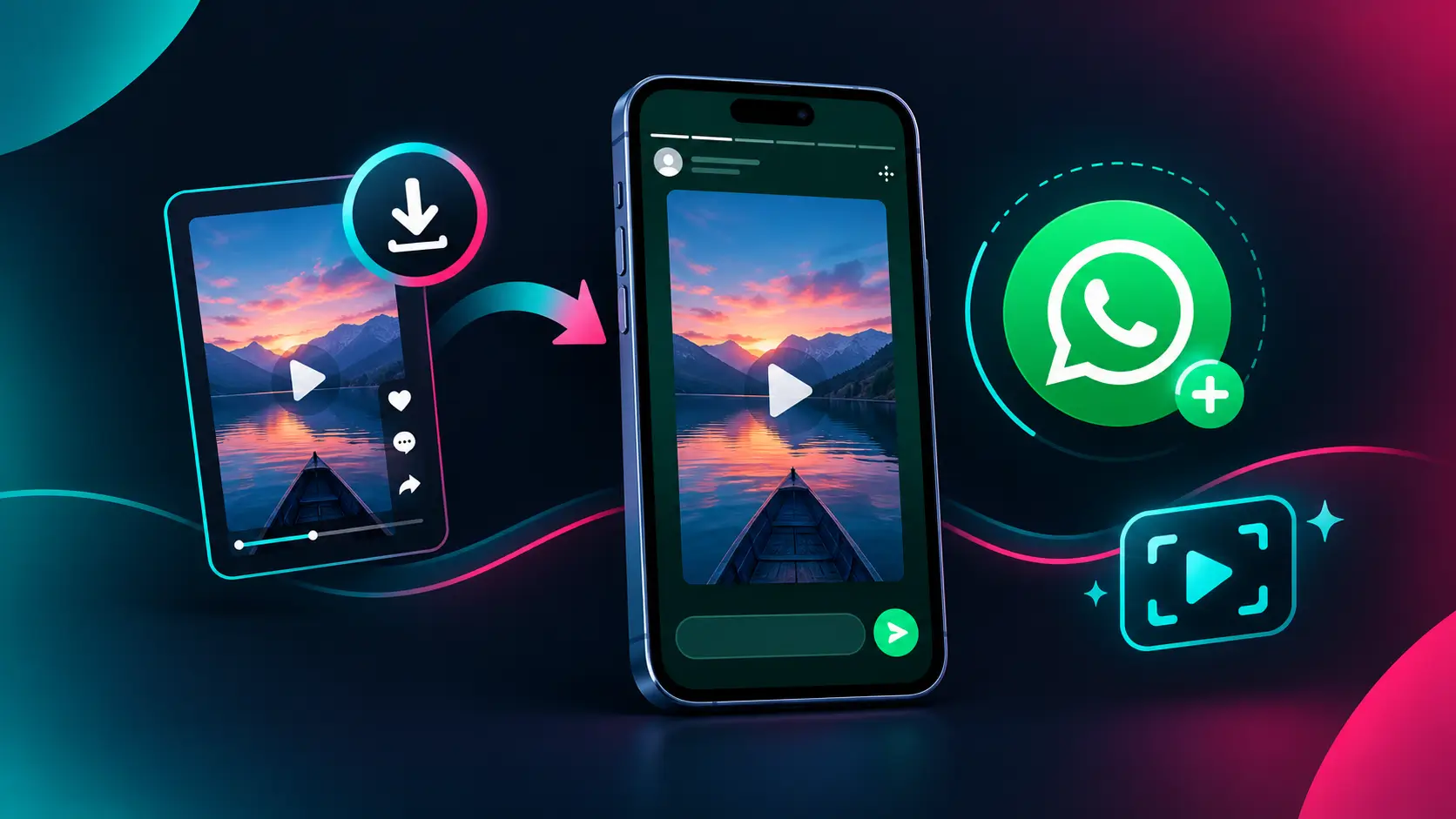
How to Put a TikTok Video on WhatsApp Status is simple when you know which sharing method to use. You can share a TikTok link directly or save a video to your phone and upload it to WhatsApp Status. If your video looks blurry, gets cut off, or includes an unwanted watermark, a few simple adjustments can help you get a better result.
In this guide, you will learn how to share TikTok videos on Android and iPhone, upload videos without a link, maintain the best available quality, and split longer clips into manageable parts. You will also find practical solutions to common WhatsApp Status upload problems.
Table of Contents
- How to Put a TikTok Video on WhatsApp Status in 3 Steps
- How to Share a TikTok Video Directly
- How to Upload TikTok Videos on Android
- How to Upload TikTok Videos on iPhone
- How to Download TikTok Videos Without a Watermark
- How to Keep WhatsApp Status Videos in HD
- How to Post Long TikTok Videos on WhatsApp Status
- Common Problems and Solutions
- Frequently Asked Questions
How to Put a TikTok Video on WhatsApp Status in 3 Steps
Follow these three steps to share a saved TikTok video with your WhatsApp contacts.
- Save the video: Open TikTok, tap Share, and choose Save video if the option is available. You can also use a reputable downloader that supports the video and provides the download options you need.
- Open WhatsApp: Go to Updates, open the status composer, and select the saved video from your phone’s gallery.
- Edit and publish: Trim the clip if necessary, add a caption, review your audience settings, and tap Send.
Your video should now appear in your WhatsApp Status. The available controls may differ between Android, iPhone, and WhatsApp versions.
How to Share a TikTok Video Directly to WhatsApp
You can share a TikTok video through its original link or upload the video file itself. These methods work differently, so choose the one that suits your needs.
Method 1: Share a TikTok Link
- Open TikTok and find the video.
- Tap the Share arrow.
- Select WhatsApp if it appears in the sharing menu.
- Choose the available Status-sharing option, if supported.
- Review the preview and publish it.
If TikTok opens a chat instead of the status composer, copy the link and use the sharing options available in WhatsApp.
Keep in mind that sharing a link does not necessarily upload the actual video. Your contacts may need to open the link to watch the original content.
Method 2: Upload the Video File
If you want people to watch the clip directly in WhatsApp, save a permitted copy of the video first. Open WhatsApp, select Updates, choose the video from your gallery, and publish it.
If TikTok does not offer a download option, you can share the link or ask the creator for permission to obtain a copy.
How to Put a TikTok Video on WhatsApp Status on Android
Android users can generally select saved videos directly from their phone’s gallery.
Step 1: Save the Video
Open TikTok, select your video, tap Share, and choose Save video if available. If you use an online downloader, copy the video link and follow the site’s instructions.
Step 2: Find the Downloaded File
Open Google Photos, Gallery, or your phone’s file manager. Check the Downloads folder or the album where your browser or downloader saves videos.
Play the file before uploading it to make sure the download is complete and the sound is present.
Step 3: Upload It to WhatsApp Status
- Open WhatsApp and go to Updates.
- Tap the camera or add-status control.
- Select the saved video.
- Trim the clip or add text if needed.
- Check your audience settings.
- Tap Send.
If you cannot find the video, check your download history, storage permissions, and the folder used by the downloading app.
How to Put a TikTok Video on WhatsApp Status on iPhone
The process on an iPhone is similar, although a downloaded video may be stored in Photos or Files.
Step 1: Download the Video
Open TikTok, tap Share, and choose Save video if available. If you download the file through Safari or another browser, it may initially appear in Files.
Step 2: Save the File to Photos
Open Files, locate the video, tap Share, and select Save Video if that option is available. Open Photos and confirm that the clip plays correctly.
Step 3: Post Your Status
Open WhatsApp, go to Updates, and open the status composer. Select the video, trim it if necessary, add a caption, and publish it.
If the video does not appear, check WhatsApp’s Photos permissions and make sure the file has finished downloading.
How to Download TikTok Videos Without a Watermark
A TikTok watermark can cover part of a video and make a repost look cluttered. If you want a cleaner result, check whether a suitable watermark-free download option is available for the video.
Use a TikTok to WhatsApp Status Downloader
- Open TikTok and find the video you want to share.
- Tap Share and select Copy link.
- Visit the TikTok to WhatsApp Status downloader on ClipDownloaders.
- Paste the copied link into the input field.
- Submit the link and wait for the available download options.
- Select an HD or watermark-free option if the tool offers it for that video.
- Save the file and play it before uploading it to WhatsApp.
The available resolution and watermark options depend on the source video and the tool’s capabilities. Do not assume every video can be downloaded in every format.
Important: Removing a watermark does not give you ownership of someone else’s content. Respect the creator’s rights and obtain permission where required.
How to Keep TikTok Videos in HD on WhatsApp Status
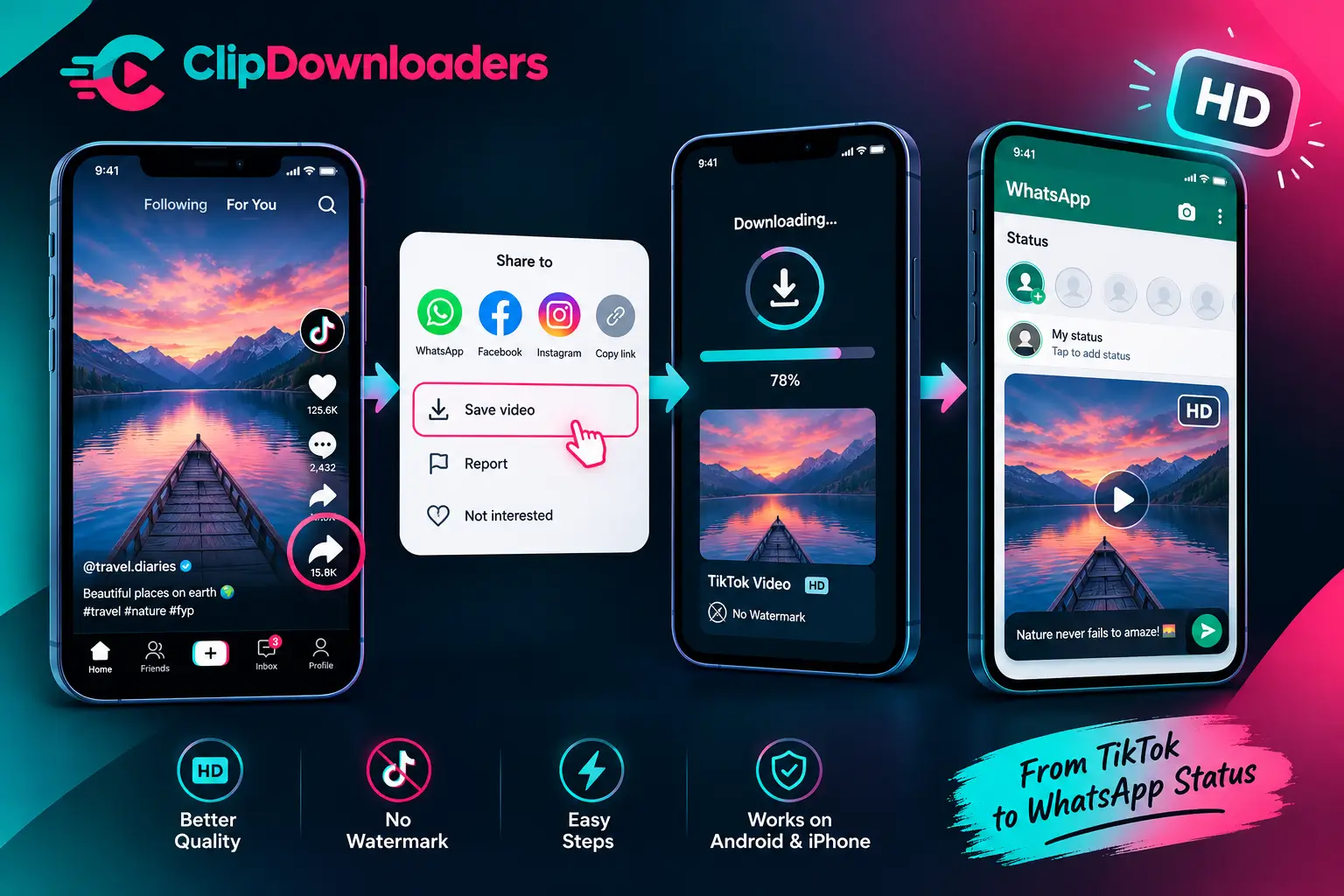
WhatsApp may compress videos during upload, so a clip that looks sharp in your gallery can appear softer after publishing. These tips can help you preserve the best available quality.
1. Start With a High-Quality Source
Choose the highest-quality version you are permitted to download. Avoid using a file that is already blurry or has been repeatedly shared through messaging apps.
2. Avoid Repeated Editing
Repeatedly exporting a video using lossy compression can reduce detail. Make your necessary edits in one session and export the final video once where possible.
3. Keep the Video Vertical
TikTok videos are generally designed for vertical viewing. A resolution of 1080 × 1920 pixels is a useful target when preparing vertical content, although your source video may use different dimensions.
Avoid unnecessary cropping, stretching, or converting the video to a square format.
4. Check WhatsApp’s Quality Options
Look for an HD option in the relevant editor or check WhatsApp’s media-quality settings. The available controls can vary by version and sharing method, and HD options may not appear for every status upload.
5. Use a Stable Internet Connection
A reliable Wi-Fi or mobile data connection can help prevent interrupted uploads. However, Wi-Fi does not automatically improve video resolution or guarantee less compression.
6. Preview the Video Before Posting
Play the saved file in your gallery and check its picture, framing, and audio. If the video is already blurry or silent before uploading, the issue may be with the source file or download.
For more video downloading options, visit the TikTok video downloader.
How to Post a Long TikTok Video on WhatsApp Status
WhatsApp applies duration limits to individual status video clips. The permitted duration and available options can change, so check the limit displayed by your current app.
Option 1: Trim the Video
Select the saved video in WhatsApp and use the timeline controls to choose the most important section. This is useful when you want to share a short tutorial, funny moment, or memorable scene.
Option 2: Check for Automatic Splitting
If your version of WhatsApp offers an automatic splitting option, follow the on-screen instructions. This feature may not be available in every version or account.
Option 3: Split the Video Manually
Use a video editor such as CapCut or InShot to divide the clip into shorter segments.
- Import the video into the editor.
- Split it into segments that fit the duration limit shown by WhatsApp.
- Export the clips in the correct order.
- Check that the sound and picture are intact.
- Upload the segments to your status in sequence.
Captions such as Part 1, Part 2, and Part 3 can help viewers follow the video. Leave a small margin below the maximum permitted duration if the limit or trimming behavior is uncertain.
How to Make Your TikTok Status More Engaging
A useful caption and suitable audience can make a status more interesting to your contacts.
Write a Short Caption
Try a caption that encourages people to watch or respond.
- Funny video: “This is exactly how my day went 😂”
- Food video: “Would you try this recipe?”
- Motivation: “A little reminder for today.”
- Useful tip: “Try this trick next time.”
- Family video: “Sharing a little happiness today.”
Keep your caption relevant to the video rather than adding unrelated hashtags or excessive text.
Use Text and Stickers Carefully
WhatsApp may offer text, stickers, drawing tools, and other editing features. Use them to add context without covering faces, subtitles, or important details.
Check Your Privacy Settings
Before publishing, review who can see your status. Depending on your version, options may include My contacts, My contacts except, or Only share with.
Give Credit to the Creator
Crediting the original creator helps viewers find the source. However, credit does not replace permission when permission is required, particularly for commercial use or protected music.
Common TikTok-to-WhatsApp Status Problems and Solutions
I Cannot Find the Downloaded Video
Solution: On Android, check Gallery, Google Photos, Downloads, or the folder used by your downloader. On iPhone, check Photos and Files. Confirm that the download has completed.
My WhatsApp Status Video Looks Blurry
Solution: Check the source file first. Use the best available quality, avoid repeated exports, and review WhatsApp’s media-quality options. WhatsApp may still compress the video during upload.
The Video Has No Sound
Solution: Play the saved video in your gallery. If it is silent there, the download may not have included the audio. If sound disappears after upload, check editing settings and possible audio restrictions.
WhatsApp Cannot Upload the Video
Solution: Check your internet connection, available storage, app permissions, and WhatsApp updates. Confirm that the file plays correctly. If necessary, export it in a commonly supported format such as MP4 with H.264 video.
My Video Is Too Long
Solution: Trim the clip or split it into shorter segments with a video editor. Follow the duration limit displayed by your version of WhatsApp.
The Downloader Is Not Working
Solution: Check that the TikTok link is complete, the video is accessible, and the tool supports the content. Avoid services that request unnecessary account credentials or require unknown software installations.
The Video Looks Cropped or Stretched
Solution: Keep the video vertical where possible and avoid stretching it to fill the screen. Preview the exported file before publishing it.
Frequently Asked Questions
Can I Put a TikTok Video on WhatsApp Status Without a Link?
Yes. If you have a video file you are allowed to save and share, select it from your gallery through the WhatsApp status composer. Your contacts can watch the uploaded video directly.
How Do I Put a TikTok Video on WhatsApp Status Without a Watermark?
Check whether a watermark-free version is available through a legitimate download method. A reputable downloader may offer this option for supported videos, but availability is not guaranteed for every TikTok.
Why Does My TikTok Video Look Blurry on WhatsApp Status?
WhatsApp may compress the video during upload. Start with the best available source, avoid repeated exports, and check the quality settings available in WhatsApp.
How Long Can a Video Be on WhatsApp Status?
WhatsApp limits the duration of individual status clips, but the applicable limit can change. Check your status composer for the current limit and split longer videos if necessary.
Can I Post a Full TikTok Video on WhatsApp Status?
Yes, if the video fits the applicable duration limit. Otherwise, divide it into shorter clips and upload them in the correct order.
Can I Share TikTok Videos on an iPhone?
Yes. Save the video if downloading is available, locate it in Photos or Files, and upload it through WhatsApp’s status composer.
Can I Share a TikTok Video Directly From TikTok to WhatsApp?
Yes, when your device supports the sharing option. Depending on the workflow, you may share a link rather than upload the video file.
Can I Add Music to a TikTok Video Before Posting It on WhatsApp?
You can edit a video with a suitable editor, but make sure you have the necessary rights to use the audio. Music licensed for TikTok is not automatically licensed for use on WhatsApp.
Can I Share Someone Else’s TikTok Video?
You can share a link, subject to the video’s availability and privacy settings. Downloading and reposting the video may require permission. Giving credit does not automatically grant reuse rights.
Does This Method Work on WhatsApp Business?
Yes. WhatsApp Business also supports status updates. The interface and available features may vary by version.
Is a TikTok-to-WhatsApp Status Downloader Free?
Pricing depends on the specific tool and its current terms. Check the website’s current options before using it, and avoid services that appear unsafe or request unnecessary personal information.
Final Thoughts
Learning how to put a TikTok video on WhatsApp Status is simple once you understand the difference between sharing a link and uploading a video file. Save a permitted copy, select it from your gallery, and review it before publishing.
For the best available quality, start with a good source file, avoid unnecessary compression, and use the media-quality options available on your device. If the video is too long, trim it or split it into shorter clips.
Always respect creators’ rights when reposting content. These steps will help you share TikTok videos more smoothly and create WhatsApp Status updates that are clear, useful, and enjoyable to watch.